9 Wallu Features You Probably Missed

Everyone sets up Wallu for the obvious reason: it answers repetitive questions and handles tickets so your staff doesn't have to. That part you already know.
But there's a whole second layer of settings in the dashboard that most servers never touch - small toggles that solve very specific annoyances. I keep running into people who didn't know these existed, so here are nine of my favorites.
1. Working hours
Wallu can be told to only answer during your support hours. Outside of them it stays quiet and posts an "I'm away, a staff member will assist you shortly" message instead of trying to answer.
This sounds backwards for a bot - isn't 24/7 the whole point? - but a lot of communities want it. If you have an active overnight staff and a quiet daytime, or you simply want the bot to step back when humans are around, you can schedule it per day with a timezone, and even scope it to specific channels.
2. The 🗑️ delete reaction
Set a delete_message_emoji (like 🗑️ or ❌) and users can remove a bot answer just by reacting to it. No commands, no staff cleanup. Handy in busy channels
where the occasional off-target answer would otherwise sit there forever.
3. Redirect answers to one channel
If people @mention Wallu all over your server, you can funnel every answer into a single channel like #ask-ai. The bot posts the answer there, mentions the
user, and drops a small "I've sent my answer here" link in the original channel. There's even a variant that only redirects when the bot is tagged, so automatic
answers stay in place and don't flood the conversation.
4. "Wait for staff" before answering
Per channel, you can set a number of minutes Wallu waits for a human before it jumps in. If a staff member answers first, Wallu stays silent. If nobody does within the window, it steps up. Great for support channels where you'd prefer a person but want a safety net for off-hours.
5. Custom actions
This is the most underused powerful feature. You can give Wallu conditional rules in plain English:
If the user's problem is related to billing, escalate the ticket immediately and mention @billing-team.
These work globally or per channel, and they're just sentences - condition and action. It turns "answer the FAQ" into "route this person to the right place," which is often what support actually needs.
6. Auto-rename tickets
If you give Wallu the Manage Channels permission, it can rename ticket channels based on the actual topic - turning ticket-0042 into toppe-refund-issue.
You can even nudge the naming style with your own instructions (always English, include the username, whatever). Off by default, easy to turn on.
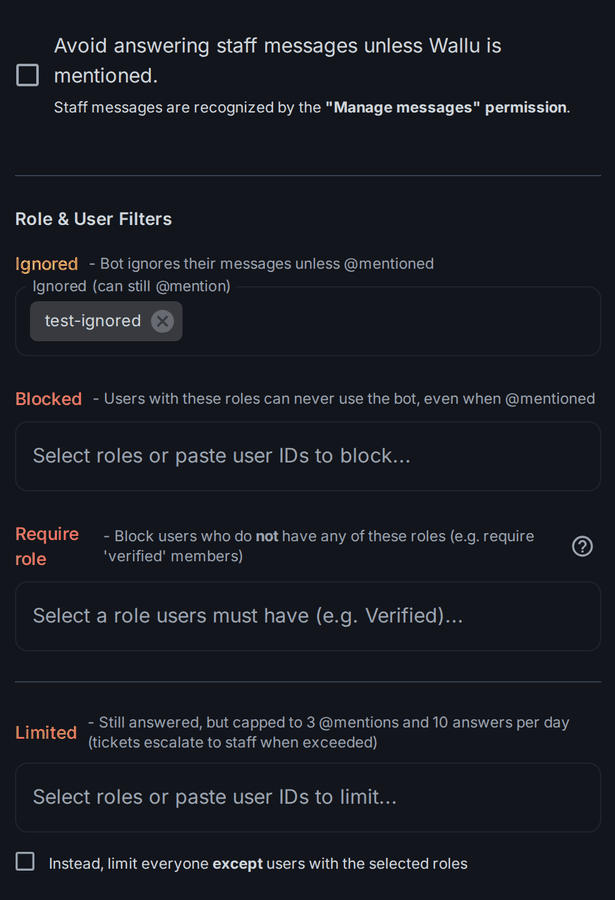
7. Require a role to use the bot
Most people find the "block these roles/users" list. Right next to it is the inverse: Require role. Pick a role like Verified, and Wallu will only answer members who have it - everyone without it is ignored. It's a one-click way to gate the bot behind your verification system, so unverified visitors can't spend your credits before they've even joined properly.
8. Reading text from images
Two separate switches here. Image analysis lets Wallu look at screenshots when it's mentioned - super useful since people paste screenshots instead of typing the error. The lesser-known one is OCR on all messages: if someone posts a screenshot of an error that happens to match a FAQ, Wallu can answer it without being asked. It costs a bit more in credits, but for support servers drowning in screenshots it's worth a look.
9. YouTube transcripts in your docs
If your documentation links to YouTube videos, Wallu can pull the transcript and use it as knowledge when answering. So a tutorial video becomes searchable support content without you transcribing anything. Premium feature, on by default.
None of these are the headline feature. But support quality is mostly a pile of small decisions - where answers go, when the bot speaks up, who it talks to - and these are the knobs for exactly that. Next time you're in the dashboard, poke around the settings you've been ignoring. There's a good chance one of them fixes something that's been mildly bugging you.
Most of these live in your Wallu dashboard settings. A few of the AI-heavy ones (image analysis, transcripts) need a Premium plan.