Who & When Wallu Answers
Beyond where Wallu is enabled (channel settings), you can control who it replies to and when. All of this is on the Settings page.
Quickest way to find out why Wallu is or isn't answering somewhere: type !wallu in that channel. It lists exactly which of these rules currently apply.
Who Wallu answers
All of these are in the When not to answer card on the Settings page:
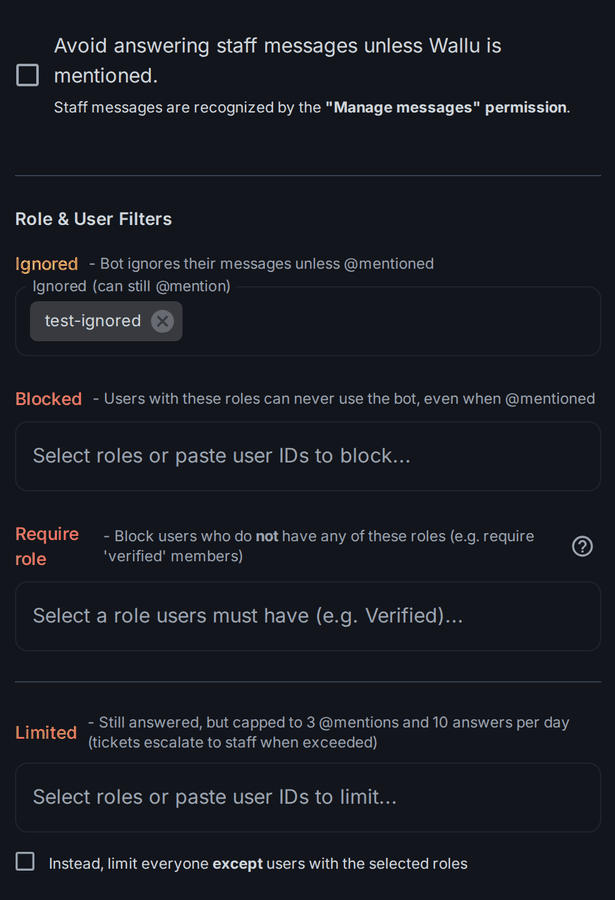
Avoid answering staff
"Avoid answering staff messages unless Wallu is mentioned." Staff means anyone with the Manage Messages permission in that channel. They can still get an answer by mentioning Wallu.
Most servers turn this on once they're done testing - it stops Wallu from interrupting staff while they're helping someone.
Ignored roles and users
Same idea, but for a list you pick yourself: these roles or users are only answered when they mention Wallu. Handy for other bots' relay accounts or for a role that finds automatic answers noisy.
Blocked roles and users
Completely blocked from using Wallu. If they mention it, they get a short "not authorized" message (editable). There's no way for them to bypass it.
Require a role to use the bot
The inverse of blocking: pick a role, and everyone without it is blocked. This is how you gate Wallu behind a Verified, Member or Customer role. Pick several roles and having any one of them is enough.
Limited roles and users
These users still get answers, but with a daily budget: 3 direct @mentions and 10 answers per 24 hours. If a limited user hits the answer cap inside a ticket, the ticket is escalated to your staff instead. Useful for free-tier members or anyone who tends to chat with the bot for fun.
Tick Instead, limit everyone except users with the selected roles to flip it around: everyone is limited except members with one of the roles - for example, unlimited answers only for your Customer or Supporter role.
Users who opted out
Anyone can run /opt-out to make Wallu ignore them entirely, on every server. This is a privacy control that belongs to the user - server staff can't opt someone in or out, so use the settings above for moderation.
When Wallu answers
Working hours
By default Wallu is available 24/7 - which is usually the point. If you'd rather have it cover only the hours when your staff is offline, set a schedule under Working Hours:
- Turn off Always Available (24/7).
- Set start and end times per weekday, and turn off the days Wallu should stay quiet. The panel shows the times in your browser's timezone. A schedule may cross midnight (e.g. 20:00 → 06:00).
- Bot's timezone decides which day it is for the schedule, i.e. when "Monday" starts.
- Optionally limit working hours to specific channels - everywhere else Wallu keeps working normally.
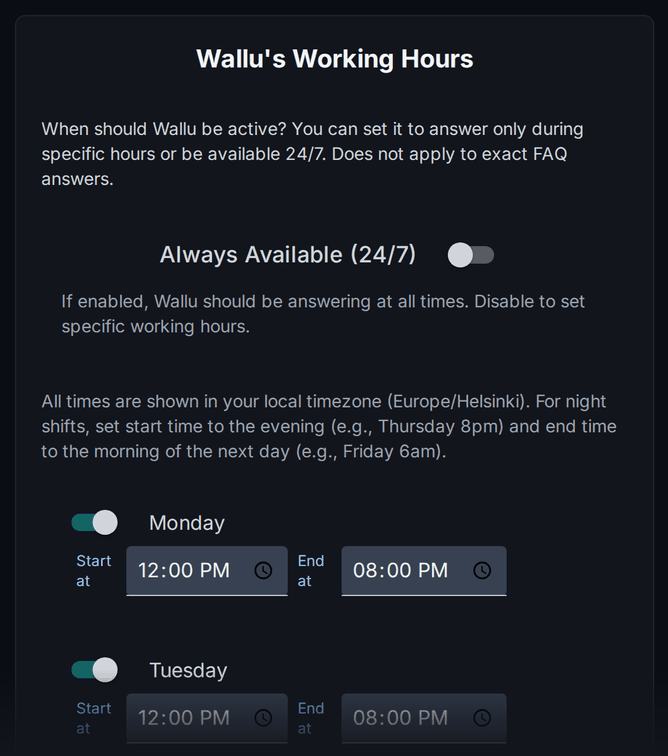
Outside the hours, Wallu stops answering from your documents. If someone mentions it, it replies with your away message ("I'm currently away from work. A staff member will assist you shortly.", editable on the Messages page). Exact FAQ matches still answer, so your instant one-liners keep working around the clock.
Pausing
Staff can run /pause in a channel to silence Wallu temporarily (20 minutes by default, /pause duration:1h for longer) and /resume to bring it back. Perfect for a conversation you'd rather have without interruptions. /resume also clears a ticket's escalated state.
After an escalation
In ticket channels, Wallu goes quiet once a ticket is escalated to staff, and optionally once any staff member replies. Escalations expire after 7 days by default (Resume escalated tickets after in settings), or immediately with /resume.
What triggers an answer
Mentions and nicknames
Wallu always answers when it's @mentioned or when someone replies to one of its messages. On paid plans, Response Triggers (nicknames) let you add words that also count as talking to it - by default just "wallu", which matters most when you run a custom bot under your own name.
A trigger only counts as a whole word near the start of the message, so "wallu" in "wallu, how do I reset this?" triggers an answer, while the same word buried mid-sentence doesn't - and a short trigger like "ai" won't fire inside "daily" or "email". Add your own product or bot name here; there's no need to avoid short words.
Automatic answers and confidence
Without a mention, Wallu decides for itself whether someone needs help and whether your knowledge covers it. The "How likely the bot is to respond to questions" slider (under Chatbot Response Style in Settings) tunes how sure it must be, from 30% Eager to Help to 80% Precise Answers, with 60% Balanced as the default. Raise it if Wallu chimes in too often, lower it if it stays quiet too much.
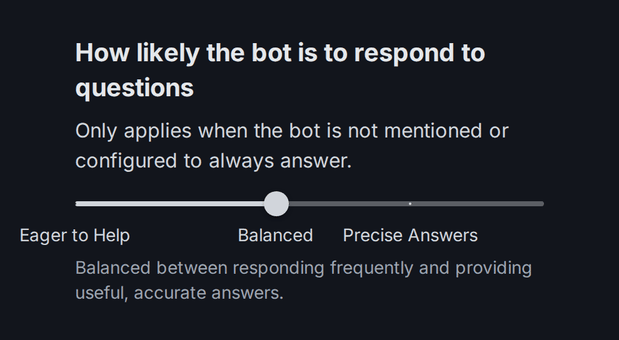
This applies only to that "monitoring a channel" mode - not to mentions, dedicated support channels or tickets, where Wallu is expected to answer. FAQs have their own separate threshold on the FAQs page.
Off-topic guardrail
Avoid answering off-topic questions is on by default: Wallu only answers what your documentation actually covers, and otherwise says it can't help. Turning it off lets it answer general questions from the model's own knowledge - more helpful in a casual server, riskier for support.
Profanity guardrail
Avoid using inappropriate language is on by default: swear words and slurs in Wallu's own answers are replaced with **** (what users write is not touched). If a normal word in your answers shows up as **** - say a game, product or command name that happens to be on the word list - turn it off in settings.
Cleaning up answers
- Deleting a message cleans up the rest - delete a question and Wallu's answer goes with it. When answers go to a separate answer channel, the answer and the "I've sent my answer here" note are treated as one pair: deleting either one removes the other. Wallu only ever removes its own messages here, never anyone else's. Moderation purges and bans that delete recent messages count as deleting the question, so those answers go too (if such a purge only catches the note and not the question, the answer itself stays in the answer channel).
- Quick Delete Reaction - set an emoji (e.g. 🗑️) under Add reaction to quickly delete bot's answer in settings and Wallu adds it to its own answers. Staff reacting with it deletes the answer; the person who asked can use it too, which replaces the answer with a short "deleted by the user" note.
- Answer voting - the 👍/👎 reactions on answers. Votes feed the analytics and help you spot weak answers. Only a small share of users vote, so treat it as a signal, not a score.
- Make Wallu Answer - the opposite direction: staff can force an answer on any message from the right-click menu, even where Wallu normally stays quiet.