Channel & Category Settings
The Channels page is where you decide where Wallu works and how it behaves there. Everything on this page is optional - a fresh server already works with the defaults.
How inheritance works
Wallu looks for settings in this order and uses the first one it finds:
- Settings for that exact channel
- Settings for its category
- Your server-wide settings (the top row on the page)
Only one of them applies - they are not merged. So a channel with its own settings ignores its category's settings entirely.
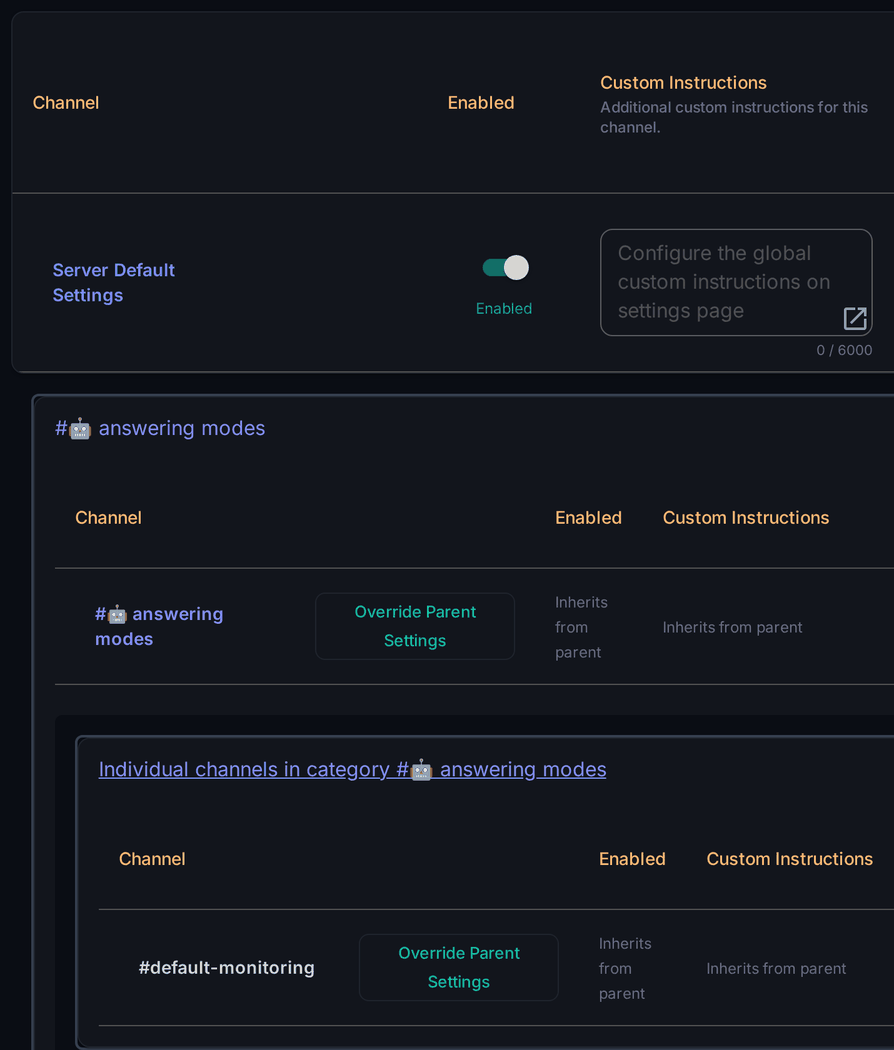
- Override Parent Settings creates settings for one channel, starting as a copy of what it inherited. Later changes to the category no longer reach it.
- Revert to Parent Settings deletes them again and the channel goes back to inheriting.
Set things at the category or server level whenever you can, and override single channels only when they genuinely need to differ. It's much less to maintain.
The settings
Enabled
Turns Wallu on or off in the channel or category. When disabled, Wallu never answers there - but !wallu still works and tells you the channel is disabled, which makes it easy to check.
Custom Instructions
Extra instructions that apply only here, added on top of your global ones - for example a different tone in a billing ticket category. See Custom Instructions.
Custom Actions
IF/THEN rules that apply only here, for example "if the user asks for a refund, escalate to staff". See Custom Actions.
Answer Every Message
Automatic (default): Wallu watches the channel, works out when someone needs help, and answers if your knowledge covers it.
Answer every message: Wallu replies to every message, including casual chatter. Only for dedicated AI channels like #ai-support - never #general. See Dedicated Support Channel.
AI Tickets
Turns the category into an automated ticket flow: Wallu answers the ticket and escalates to staff when it can't help. Enable it on the category where open tickets live (or on the channel when your ticket bot uses threads), not on individual ticket channels.
Wait Staff (minutes)
Wait this many minutes before answering, and stay quiet if a staff member answers first. Great for channels where you'd rather have a human reply when someone's around, with Wallu as a fallback. It doesn't apply when Wallu is mentioned directly.
Advanced settings
Click Advanced Settings to expand these:
- Require @Mention - Wallu only answers when it's mentioned or replied to in this channel. Use it in busy chat channels where automatic answers would be noise.
- Use Documents - off means Wallu answers from general knowledge instead of your documentation in this channel. Rarely what you want; the default (use documents) is what keeps answers grounded in your content.
- Replies Per User / Max Replies Within (minutes) - caps how many times Wallu replies to the same person in this channel within the time window. The user gets a short rate-limit notice (editable on the Messages page).
Special channels (server-wide)
These live on the Settings page rather than per channel:
- Send answers in specific channel - send answers to one channel (e.g.
#ask-ai) instead of the channel the question was asked in. Wallu mentions the user there and leaves a short "I've answered here" note behind. There's a sub-option to redirect only answers where someone @mentioned Wallu, so automatic answers stay in place. - Staff Notifications Channel - where Wallu posts staff-facing messages such as FAQ suggestions. Leave it unset to disable them.
- Create new Discord threads for bot answers (under General Configuration) - Wallu creates a new thread for each answer. Keeps busy channels tidy, but it doesn't combine with sending answers to a specific channel.
Also worth knowing
- Voice channels use the settings of their built-in text channel.
- Threads inherit their parent channel's settings.
- Not sure why Wallu is quiet somewhere? Type
!walluin that channel - it reports whether it's enabled, paused, escalated, waiting for staff or ignoring you as staff. See Who & When Wallu Answers.